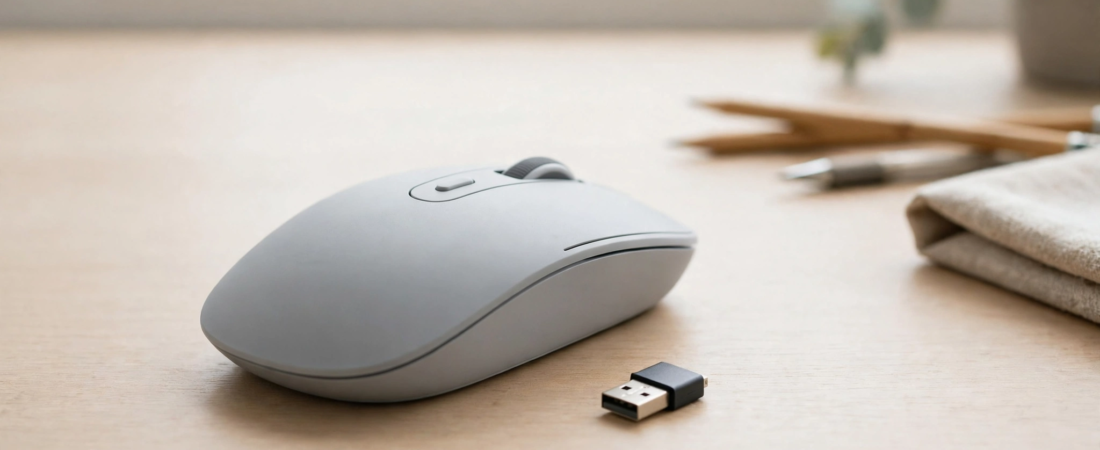
Shopping for a wireless mouse sounds simple until you read the spec sheet: Bluetooth, 2.4 GHz dongle, sometimes both. They are not the same technology, and picking the wrong one for your use case means either laggy gaming or a dongle you keep losing. This guide explains exactly how Bluetooth and 2.4 GHz wireless differ — in latency, battery life, multi-device use, and reliability — so you can buy the right mouse the first time, whether you game, work, or travel across devices.
How Bluetooth and 2.4 GHz Wireless Actually Work
Bluetooth connects your mouse directly to the Bluetooth radio already built into your laptop, tablet, or phone. No dongle needed. It is a general-purpose wireless standard designed to juggle dozens of devices at once — your keyboard, earbuds, smartwatch, and mouse all share the same radio and take turns talking to the computer.
2.4 GHz wireless (the tiny USB dongle kind) uses a proprietary radio link between the mouse and its own dedicated receiver. Logitech calls its version LIGHTSPEED, Razer calls it HyperSpeed, and other brands have their own names. Because the dongle talks only to your mouse, the connection gets a private, uncongested channel — which is the entire reason it is faster and more consistent.
Many modern mice support both (called dual-mode or triple-mode when a wired USB option is included). These are often the smartest buy, because you can use Bluetooth on your tablet and the dongle on your gaming PC with one mouse.
Latency: The Decisive Difference
Latency — the delay between moving your hand and seeing the cursor move — is where the two technologies split hardest:
- 2.4 GHz dongle: around 1–2 ms at 1000 Hz polling, effectively identical to a wired mouse. Flagship gaming mice push this to 0.125 ms at 8000 Hz.
- Bluetooth: typically 20–50 ms in real-world use, because standard Bluetooth polls at only 125 Hz (an 8 ms reporting interval before any other delay) and shares radio time with your other Bluetooth devices.
To put that in perspective, average human reaction time is 150–250 ms, so a few milliseconds are invisible — but 20–50 ms of Bluetooth lag is absolutely noticeable in fast games. It shows up as a floaty, slightly drunk cursor: fine for spreadsheets, terrible for flick shots. Independent latency tests consistently confirm that 2.4 GHz gaming mice match wired performance while Bluetooth sits far behind.
The practical rule is simple: for gaming, always use the 2.4 GHz dongle, even on a mouse that also supports Bluetooth. Use Bluetooth only for work and travel.
Polling Rate: 1000 Hz vs 125 Hz
Polling rate is how many times per second the mouse reports its position to the computer. A 2.4 GHz dongle typically runs at 1000 Hz (a report every 1 ms); Bluetooth usually caps at 125 Hz (a report every 8 ms). That 8 ms floor is baked into the Bluetooth standard and is the main reason Bluetooth can never match a dongle for responsiveness, regardless of how good the mouse sensor is.
For office work, web browsing, coding, and design, 125 Hz is perfectly fine — you will not feel it. For competitive shooters and fast MOBA play, the difference between 1000 Hz and 125 Hz is the difference between crisp and mushy. Some gaming-optimised Bluetooth implementations shave this down, but they still cannot match the consistency of a dedicated receiver.
Battery Life: Bluetooth Usually Wins
Here Bluetooth takes the lead. Because Bluetooth Low Energy was designed for power efficiency — the radio sleeps deeply between its infrequent 125 Hz reports — Bluetooth mice routinely last months on a single charge or battery. A Logitech Pebble 2 M350s, for example, runs up to 24 months on one AA battery over Bluetooth.
A 2.4 GHz dongle transmitting at 1000 Hz works much harder. Office-grade 2.4 GHz mice still manage months of life, but gaming mice at high polling rates typically need charging every few days to a week — flagship models like the Superlight 2 and Viper V3 Pro offer 90–100 hours. If you hate charging, Bluetooth (or a low-polling 2.4 GHz office mouse) is the low-maintenance choice.
Multi-Device Pairing: Bluetooth’s Killer Feature
This is the other place Bluetooth dominates. A Bluetooth mouse can pair with up to three devices — say your office laptop, your iPad, and your phone — and switch between them with a button press. No dongle to move, no USB port occupied.
A 2.4 GHz dongle, by contrast, is married to whichever machine currently hosts it. Moving it between a desktop and a laptop means physically unplugging it (and risking losing a receiver the size of a fingernail). Some brands now let one receiver handle multiple same-brand peripherals, but cross-device switching remains Bluetooth’s territory.
If your day involves hopping between a laptop, a tablet, and a desktop, a Bluetooth or dual-mode mouse will make your life noticeably easier.
Reliability and Interference
A 2.4 GHz dongle owns a dedicated channel, so it does not compete with your earbuds or smartwatch. In a clean setup it is rock solid. Its weakness is the crowded 2.4 GHz band itself: Wi-Fi routers, microwaves, and neighbouring apartments all share it. If your cursor stutters, plug the dongle into a front USB port (not hidden behind a metal PC case), keep it close to the mouse, and move your router’s Wi-Fi to a less congested channel.
Bluetooth’s weakness is the opposite: it shares one radio with everything. In a quiet room it is fine, but in a setup with active Bluetooth earbuds, a watch, and a keyboard, you may notice occasional micro-stutters — the devices are literally taking turns. For office work this is a minor annoyance; for ranked gaming it is disqualifying.
Compatibility and Setup
Bluetooth wins on convenience: every modern laptop, tablet, and phone already has it, so pairing takes seconds with no hardware. This makes Bluetooth the only option for iPads, Android tablets, and thin ultrabooks where you do not want a dongle permanently sticking out of a USB-C port (or eating it via an adapter).
2.4 GHz needs a USB-A port for the dongle — increasingly annoying on USB-C-only laptops, though a cheap USB-C adapter solves it. The upside is true plug-and-play: no pairing menus, no OS Bluetooth quirks, and it works in BIOS screens and during OS installs where Bluetooth does not.
Head-to-Head Comparison
| Factor | Bluetooth | 2.4 GHz dongle |
|---|---|---|
| Latency | 20–50 ms (noticeable) | 1–2 ms (like wired) |
| Polling rate | ~125 Hz | 1000 Hz (up to 8000 Hz) |
| Battery life | Excellent (months) | Good (days to weeks at high polling) |
| Multi-device switching | Yes, up to 3 devices | No — dongle stays in one PC |
| Gaming suitability | Poor for competitive play | Excellent, matches wired |
| Tablet/phone support | Yes, native | Needs USB port/adapter |
| Setup | Pairing menu | Plug-and-play dongle |
| Interference risk | Shares radio with other BT devices | Shares 2.4 GHz band with Wi-Fi |
| Port usage | None | Occupies one USB port |
Which Should You Buy? By Use Case
Competitive gaming (Valorant, CS2, BGMI on PC)
2.4 GHz, no contest. Use the dongle, set 1000 Hz polling, and keep the dongle close to the mouse. Bluetooth’s 20–50 ms lag will cost you duels.
Office work and study
Bluetooth is ideal: months of battery, no occupied USB port, and latency that is irrelevant for documents and browsing. A dual-mode mouse gives you a fallback if Bluetooth ever stutters.
Laptop + tablet + phone lifestyle
Bluetooth with multi-device pairing (up to 3 devices) is the killer feature. One mouse for everything, switching with a button.
Travel
Bluetooth — no dongle to lose in a hotel room, and it pairs with anything. This is also why slim travel mice like the Logitech Pebble 2 are Bluetooth-first.
Design and video editing
Either works, but many creators prefer 2.4 GHz for the slightly more consistent cursor during precise timeline work, or a premium dual-mode mouse like the MX Master 3S used over Bluetooth for its multi-device flow.
The Sweet Spot: Dual-Mode Mice
If you do more than one of the above, buy a mouse that does both and stop choosing. Good dual-mode options in India include the Logitech G304 Lightspeed (around ₹2,341 — dongle plus Bluetooth), the Logitech Pebble 2 M350s (around ₹1,299 — Bluetooth plus dongle), and the Logitech MX Master 3S (around ₹5,795 — Bluetooth multi-device plus Bolt receiver). Use the dongle at your desk for maximum performance and Bluetooth everywhere else. It is the closest thing to having your cake and eating it.
Frequently Asked Questions
Is Bluetooth worse than 2.4 GHz for gaming?
Yes, measurably. Bluetooth typically adds 20–50 ms of latency and polls at 125 Hz, while a 2.4 GHz dongle delivers 1–2 ms at 1000 Hz — effectively wired performance. For competitive gaming, always use the dongle.
Can I use a 2.4 GHz mouse with my iPad or phone?
Only with a USB-C adapter or hub for the dongle, and it is clunky. Bluetooth is the natural choice for tablets and phones — no adapter, no occupied port.
Why does my Bluetooth mouse stutter sometimes?
Usually radio congestion: your Bluetooth earbuds, watch, and keyboard are sharing one radio. Try disconnecting unused Bluetooth devices, moving the mouse closer, or switching to the 2.4 GHz dongle if your mouse has one.
Does 2.4 GHz interfere with Wi-Fi?
They share the 2.4 GHz band, so heavy Wi-Fi traffic can occasionally affect a dongle. Keep the receiver close to the mouse (front USB port, not behind a metal case) and, if needed, move your router to the 5 GHz band or a clearer 2.4 GHz channel.
Do dual-mode mice cost more?
Not necessarily. The Logitech G304 (around ₹2,341) and Pebble 2 M350s (around ₹1,299) both offer Bluetooth plus a 2.4 GHz receiver at budget prices. Dual-mode is now standard, not premium.
Which mode saves more battery?
Bluetooth, by a clear margin. Its low-energy design and 125 Hz polling let mice last months per charge, while an active 2.4 GHz link at 1000 Hz drains batteries in days to weeks on gaming mice.
Conclusion
There is no single winner — there is a right tool for each job. Buy 2.4 GHz for gaming, where 1–2 ms latency and 1000 Hz polling actually matter. Buy Bluetooth for office work, study, tablets, and travel, where battery life, multi-device switching, and no-dongle convenience matter more. And if your life includes both — a gaming PC plus a laptop or tablet — buy a dual-mode mouse like the G304 or Pebble 2 and use each connection where it shines. That one decision eliminates the entire debate.